![Filmhub_Logotype_Neg.png]](https://help.filmhub.com/hs-fs/hubfs/Filmhub_Logotype_Neg.png?height=25&name=Filmhub_Logotype_Neg.png)
Available with any of the following Plans, except where noted:
- Plus, Pro
In this guide:
- What is Insights: Promo Page?
- Why Insights: Promo Page matters
- How to access Insights: Promo Page
- Using the Date Filter
- Understanding your data
- Frequently Asked Questions
What is Insights: Promo Page?
Insights: Promo Page is an analytics dashboard that tracks visitor behavior, traffic sources, geographic data, device usage, and campaign performance across all your Active titles' Promo Pages.
Why Insights: Promo Page matters
Knowing that people are visiting your Promo Page is useful. Knowing where they came from, what they did when they got there, and whether your marketing is actually driving results is what lets you make better decisions.
Without this data, you are guessing. You might be spending time and money on a channel that is sending no meaningful traffic, while an unexpected referrer, a community forum, an international press outlet, a social post from a collaborator, is quietly driving your most engaged visitors without you knowing.
Insights: Promo Page removes that guesswork. It shows you exactly which marketing activities are working, which channels are driving the most engaged visitors, and where to focus your efforts next. During an active campaign window, it is the tool that tells you when to double down and when to cut.
For a full breakdown of how to set up and use UTM parameters to get the most out of this data, see UTM Tracking: A Setup Guide.
How to access Insights: Promo Page
- Open your Filmhub Dashboard
- Select Insights from the left-hand menu
- Select Promo Page from the Insights submenu
Data begins populating from the first visit to any of your Promo Pages. No additional setup is required beyond connecting a Google Measurement ID if you want to cross-reference data in Google Analytics (see Promo Page: Tracking setup).
Using the Date Filter
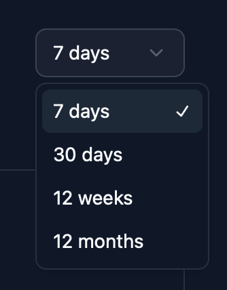
Click the date dropdown at the top of the page to filter data by a specific time range. Available options run from 7 days to 12 months. All tables and charts on the page will update to reflect the selected range.
Understanding your data
At a Glance
A visual chart showing how your titles have performed across the selected date range. Use the tabs at the top of the chart to toggle between:
- Visitors - unique visitors to your Promo Pages
- Page Views - total number of times your pages were loaded
- Events - total interactions recorded across your pages
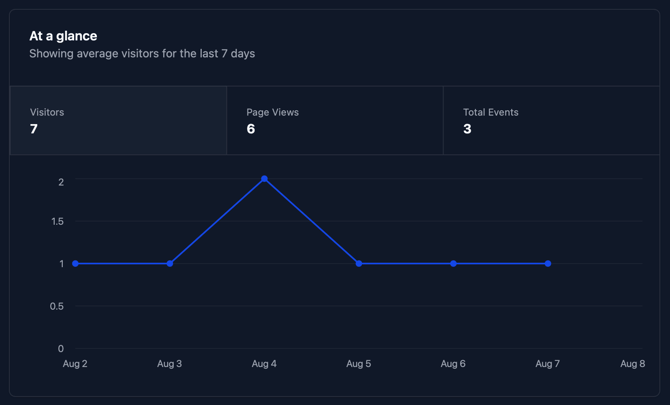
The selected tab also affects the data shown in the tables below.
Top Titles
A ranked list of your titles by the metric selected in At a Glance. Useful for identifying which titles are driving the most audience activity across your portfolio.
If you have a large catalog, use the search bar (visible when the table is expanded) to find a specific title quickly.
How to use this data: if one title is significantly outperforming others, examine what is driving that traffic in the referrer and UTM tables and apply those tactics to underperforming titles. If a title you actively promoted is not appearing in the top results, cross-reference with Top Referrers to identify whether your campaign channels are actually driving traffic.
Top Referrers
A list of the websites and sources sending visitors to your Promo Pages. Each referrer shows the volume of traffic it is driving.
How to use this data: this is one of the most actionable tables in Insights. Double down on referrers that are driving meaningful traffic. If a channel you are actively investing time or money in is not appearing as a top referrer, reassess whether that activity is worth continuing. Unexpected referrers, such as a community forum or international press outlet you did not target, may signal an audience worth pursuing more deliberately.
Watch Now Clicks
Shows which streaming channels your audience is clicking through to from your Promo Page, and how often.
How to use this data: low Watch Now Clicks relative to overall visitor volume may indicate that your audience is not finding a channel they prefer in the Where to Watch section, or that your trailer or metadata is not compelling enough to drive action. High clicks to a specific channel can help you prioritize where to focus paid advertising spend for maximum conversion.
Countries
A geographic breakdown of where your visitors are coming from. Toggle between list view and a color-coded map using the switch at the top of the table.
How to use this data: look for geographic patterns that match your intended audience, and pay attention to unexpected spikes. A surge of traffic from a country you did not specifically target may indicate organic discovery through press, community sharing, or a referrer you were not aware of. It may also signal an underserved audience worth targeting with localized paid campaigns or influencer outreach.
Devices
A breakdown of visitor traffic by device type: mobile, desktop, and tablet.
How to use this data: a predominantly mobile audience should influence your creative decisions. Vertical or square formats perform better on mobile-first channels like TikTok and Instagram. If the majority of your visitors are on mobile, ensure your Promo Page artwork and trailer are optimized for smaller screens.
UTM Campaigns
If you are using UTM parameters in your campaign links, this table breaks down performance by campaign tag. Use the dropdown to filter by Campaign, Content, Medium, Source, or Term.
UTM parameters are short tags added to the end of a URL that tell your analytics platform where traffic is coming from. For example, the same Promo Page link shared in an email and in a paid Instagram ad can carry different UTM tags, allowing you to see exactly which one drove more traffic and conversions.
How to use this data: compare performance across sources and mediums to understand which channels and creatives are driving the most engaged visitors. Use this to make real-time decisions about where to shift budget or effort during an active campaign window. If a paid channel is driving high traffic but low Watch Now Clicks, the issue may be audience misalignment rather than reach.
Exporting your data
Each table in Insights: Promo Page can be exported as a CSV file. Click the download icon on any table to export the full dataset for that metric. This is useful for sharing campaign performance reports, tracking results over time in a spreadsheet, or combining Insights data with revenue data from the Performance page.
Frequently Asked Questions
When does data start appearing in Insights: Promo Page?
- Data begins populating from the first visit to any of your Promo Pages. There is no additional setup required beyond having an active Plus or Pro subscription.
Can I view Insights data across all my titles at once?
- Yes. The At a Glance chart and all tables reflect data across your full portfolio by default. Use the Top Titles table to see how individual titles are performing relative to each other.
Do I need to connect a Google Measurement ID to use Insights: Promo Page?
- No. Insights: Promo Page works independently of Google Analytics. Connecting a Google Measurement ID is optional and allows you to cross-reference Promo Page data with your broader Google Analytics setup. See [Promo Page: Tracking setup] for instructions.
How far back does the data go?
- You can filter data up to 12 months back using the date range dropdown. Data is retained for as long as your Plus or Pro subscription is active.
I just upgraded to Plus or Pro. Will I see historical data?
- Insights: Promo Page will show data from the date your title's Promo Page first received visitors, provided that falls within the available 12-month window. Data is not retroactively generated for periods before your first visitor.
My UTM Campaigns table is empty. What does that mean?
- It means your current campaign links do not include UTM parameters. Without UTM tags, Filmhub cannot attribute traffic to specific campaigns or channels. See [The Filmhub Marketing Playbook] for a step-by-step guide to setting up UTM parameters.
Can I share Insights data with someone who does not have access to my Filmhub account
- Not directly through the dashboard. Use the CSV export on each table to download and share data externally.